
Printers
- PolyJet Legacy Printers
- Alaris30 V1
- Connex260
- Connex350/500
- Eden250
- Eden260
- Eden260V/VS
- Eden330
- Eden350
- Eden350V/500V
- J700 & J720 Dental
- J750/J735
- J750 Digital Anatomy
- Objet24/30 V2 Family
- Objet24/30 V3 Family
- Objet30 V5 Pro & Prime
- Objet260 Connex 1-2-3
- Objet260 Dental & Dental Selection
- Objet350/500 Connex 1-2-3
- Objet1000 Plus
Materials
- PolyJet Materials
- Agilus30 family
- Biocompatible
- Biocompatible Clear MED610
- Dental Materials
- Dental TrueDent Materials
- Dental TrueDent-D Materials
- Digital ABS Plus
- DraftGrey
- Elastico Clear/Black
- High Temperature
- MED610-DSG
- PolyJet Support
- Rigur & Durus
- Tango
- PolyJet ToughONE™
- Transparent
- Vero ContactClear
- Vero Family
- Veroflex
- VeroUltra Opaque
- Vivid Colors
- Stereolithography Materials
- Somos® 9120™
- Somos® BioClear™
- Somos® DMX SL™ 100
- Somos® Element™
- Somos® EvoLVe™ 128
- Somos® GP Plus™ 14122
- Somos® Momentum™
- Somos® NeXt™
- Somos® PerFORM™
- Somos® PerFORM Reflect™
- Somos® ProtoGen™ 18420
- Somos® ProtoTherm™ 12120
- Somos® Taurus™
- Somos® WaterClear® Ultra 10122
- Somos® WaterShed® AF
- Somos® WaterShed® Black
- Somos® WaterShed® XC 11122
- Somos® WaterShed® XC+
1 What is GrabCAD Pulse™?
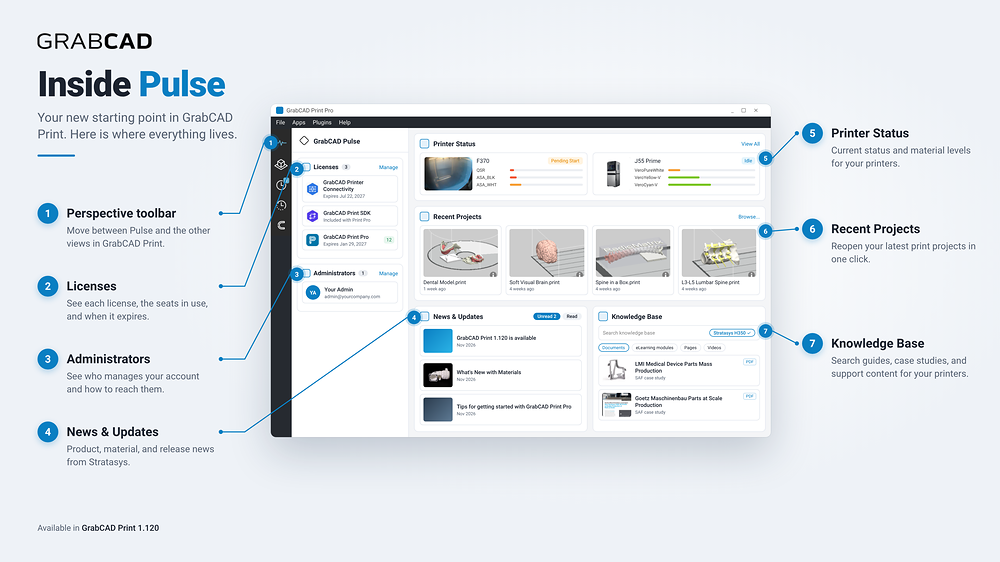
GrabCAD Pulse is the new home screen in GrabCAD Print™. It brings your licenses, administrators, printer status, recent projects, news from Stratasys and a searchable knowledge base into one view.
2 When is it available?
Pulse is included in GrabCAD Print 1.120 and later, released November 17, 2026.
3 Do I need to buy or install anything?
No. Pulse is part of GrabCAD Print. Update to version 1.120 or later and it’s there.
4 Who gets Pulse?
All GrabCAD Print users.
5 Why does GrabCAD Print open to a different screen now?
Starting with 1.120, GrabCAD Print opens to Pulse so you can see where things stand before you start working: which printers are ready, what you worked on last, and your license status.
6 How do I get to my trays and other tools?
Select Slicer in the Perspective toolbar on the left side of GrabCAD Print. Schedule, Reports and Control are there too. To return to Pulse, select the Pulse icon at the top of the toolbar.
7 Can I choose a different start screen?
Not at this time. Pulse is the start screen for all users.
8 What’s on the Pulse screen?
Six panels: Licenses, Administrators, Printer Status, Recent Projects, News & Updates, and Knowledge Base.
9 Why can I see license information?
Pulse shows every user the licenses available to their company, including seats in use, trial status and expiry dates, so you know where things stand. Only administrators can make changes.
10 Can I change licenses or users from Pulse?
Select Manage on the Licenses or Administrators panel to open GrabCAD Control™. Administrators can make changes there. Other users can view many areas of Control but cannot change them.
11 What administrator information is shown?
Each administrator’s name and email address, taken from their GrabCAD Control profile. Phone numbers are not shown. Administrators can update their details in their Control profile.
12 Where did the digital engagement panel go?
It’s now part of Pulse, as News & Updates.
13 A printer is missing from Printer Status. What should I do?
Contact your company’s GrabCAD administrator, listed in the Administrators panel, or Stratasys Support.
14 Where can I learn more?
Read the GrabCAD Pulse blog post, take the two-minute tour, or search “Pulse” in the Knowledge Base.